
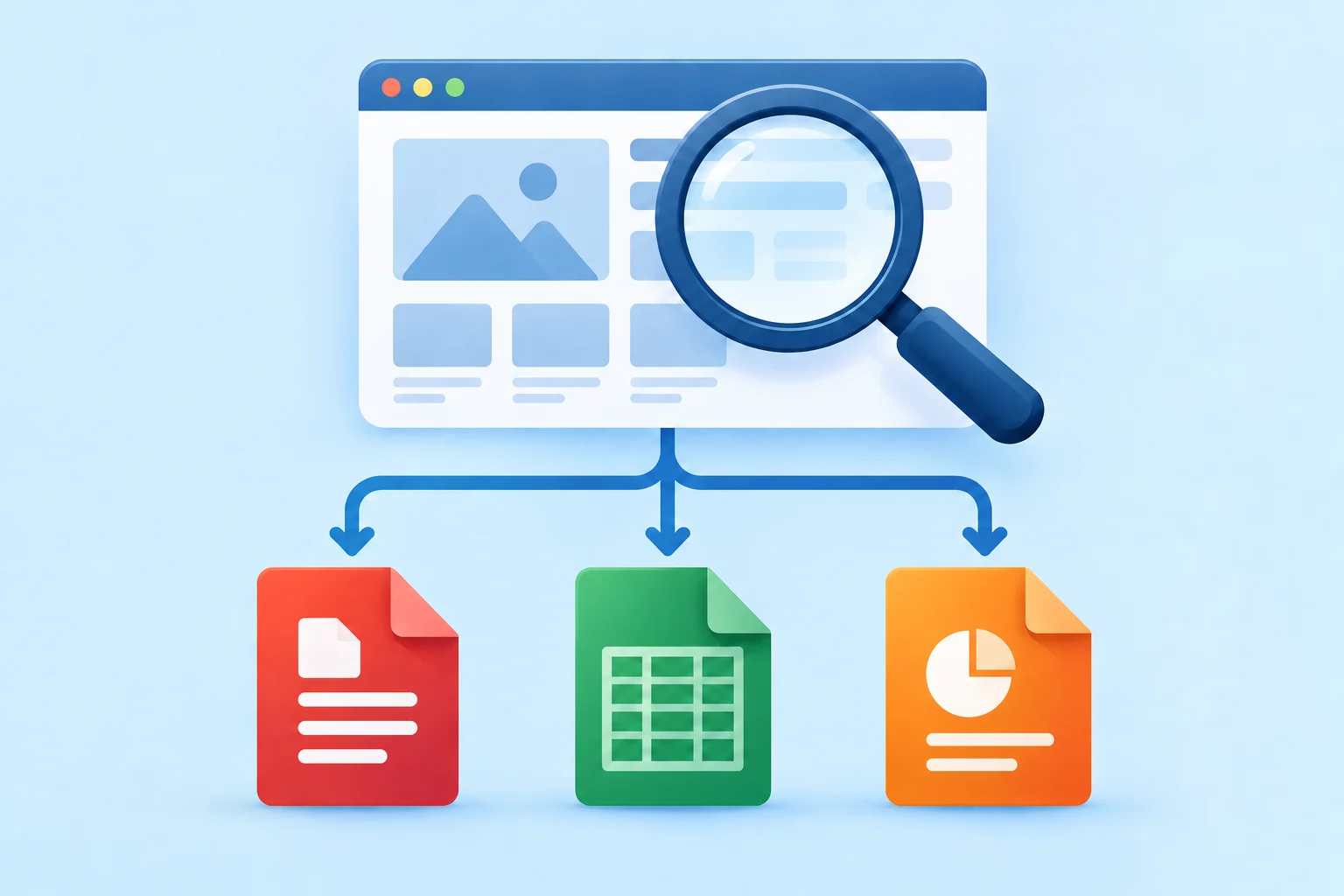

A company may have ten years of annual reports scattered across its investor pages. A public authority may publish useful spreadsheets only as attachments to old announcements. A university may have presentations spread across dozens of departments.
You know which website the files came from. The problem is finding them.
A good first search combines three things you already know: the website, what you are looking for, and the kind of file you want.
site:example.org annual report filetype:pdf
The same approach works for a spreadsheet:
site:example.org budget filetype:xlsx
Or for a presentation:
site:example.org conference filetype:pptx
FindFiles.net supports site: and filetype:. Google and Bing also document these operators, although the details are service-specific. See the official Google search-operator documentation and Microsoft's advanced search keywords. The useful part is not memorizing syntax. It is learning what to change when the obvious query does not find the file.
Start with the website, not with endless browsing
Suppose you are looking for financial reports from example.org. You could open the site, find its investor or publications section, work through its menus, follow archive links, and repeat the process for every year.
Sometimes that works. Often it is quicker to search the hostname directly:
site:example.org annual report filetype:pdf
Looking for a particular year?
site:example.org annual report 2024 filetype:pdf
Looking for a sustainability report instead?
site:example.org sustainability 2024 filetype:pdf
This is particularly useful on large sites where different departments have built their own sections over many years. A file may still be publicly accessible even when the current navigation makes it difficult to reach.
The site's own search box is still worth trying. But if it returns news articles, landing pages, and unrelated results instead of the document you need, there is little reason to keep fighting it.
Do not assume the file is in the format you expect
This is where searches often become unnecessarily narrow. If you need data, you might start by looking for Excel files:
site:example.org population statistics filetype:xlsx
But the publisher may have used an older Excel format, published the same data as CSV, or chosen an OpenDocument spreadsheet:
site:example.org population statistics filetype:xls
site:example.org population statistics filetype:csv
site:example.org population statistics filetype:ods
The same applies to presentations. A slide deck might be available as PPTX, an older PPT file, an ODP presentation, or only as a PDF export.
| What you want | File types worth trying |
|---|---|
| Reports and documents | PDF, DOCX, DOC, ODT |
| Spreadsheets and data | XLSX, XLS, CSV, ODS |
| Presentations | PPTX, PPT, ODP, PDF |
You do not need to search every format every time. Try the most likely one first. If that fails, changing the extension is often more productive than changing the entire query.
Use the details you actually remember
You rarely need the exact document title. Maybe you remember that it was about housing, appeared around 2023, and came from a particular organization. That is already enough:
site:example.org housing 2023 filetype:pdf
If you remember an unusual phrase from the title, quotation marks can help:
site:example.org "housing needs assessment" filetype:pdf
A product model number can be even more useful:
site:example.org "ABC-123" manual filetype:pdf
For spreadsheets, you could try:
site:example.org "energy consumption" 2025 filetype:xlsx
Start with clues that are unlikely to occur by accident: a model number, report name, year, department, or distinctive phrase. If you get too few results, remove something. A query with eight remembered words is not automatically better than one with three good ones.
The file may not live where you expect
A website is not always one hostname. You may visit an organization at www.example.org while its files are stored at downloads.example.org, media.example.org, documents.example.org, or a departmental subdomain. Sometimes downloads are placed on a separate publishing or document-hosting service.
That matters when a search is too restrictive. Operator behavior also differs between services. Google documents that site:example.org can return URLs from the main domain and its subdomains, while warning that a site search is not exhaustive. FindFiles.net currently treats site: as an exact-host filter.
On FindFiles.net, if site:www.example.org "annual report" filetype:pdf finds nothing, try a likely file hostname explicitly:
site:downloads.example.org "annual report" filetype:pdf
If you do not know the hostname, remove the site restriction and keep the organization name:
"Example Organisation" "annual report" 2024 filetype:pdf
The goal is to find the document, not to prove that your first guess about where it is hosted was correct.
Search for the file, not the page talking about it
Search for Example Organisation annual report 2024 and you may get an investor-relations page, a press release announcing the results, a news article discussing them, or a page listing several reports. Those can all be useful.
But if what you need is the report itself, tell the search that:
Example Organisation annual report 2024 filetype:pdf
The same principle becomes more important with data. A page titled “Population Statistics 2025” might describe a dataset and place a small download link near the bottom. If your goal is the spreadsheet, search for the spreadsheet:
site:example.org population statistics 2025 filetype:xlsx
Or try the CSV distribution:
site:example.org population statistics 2025 filetype:csv
You are changing the target from information about the file to the file itself.
Use a file search engine when the file itself is the target
General web search has to answer many kinds of questions. It may reasonably decide that a useful page describing a report is a better result than the raw PDF. That is less helpful when you already know you want the PDF.
FindFiles.net treats public files as the objects being searched. You can use the same kind of query directly:
site:example.org annual report filetype:pdf
Or:
site:example.org budget filetype:xlsx
You can also start with ordinary search terms and select the required file type instead of typing the operator. This becomes particularly useful when you need several kinds of files from one publisher: reports in PDF, supporting data in XLSX or CSV, and presentations in PPTX.
Instead of repeatedly working through an organization's website structure, you can search indexed public files directly and narrow the results to the formats that matter.
Example: finding an annual report and the data behind it
Imagine you need a company's 2024 annual report. Start with:
site:example.org "annual report" 2024 filetype:pdf
You find the PDF, but you need some of its financial tables for further analysis. Do not assume the PDF is the only thing the company published. Try:
site:example.org 2024 financial filetype:xlsx
Then filetype:xls and filetype:csv. If nothing appears, use a term from inside the report rather than “financial”:
site:example.org 2024 revenue filetype:xlsx
Still nothing? Search the organization and subject without restricting the hostname:
"Example Organisation" 2024 results filetype:xlsx
This is usually more direct than opening twenty pages and checking each one for an attachment.
If the first search fails, change one thing
You do not need increasingly complicated queries. Usually you need one sensible adjustment.
No PDF appears?
Try DOCX or remove the file-type filter temporarily.
You find reports, not data?
Try XLSX, XLS, CSV, and ODS.
The older report is missing?
Add the year and remove generic words.
You remember part of the title?
Put the distinctive phrase in quotation marks.
You find pages, not downloads?
Add the file type to make the file itself the target.
The hostname produces nothing?
Try a known download subdomain or remove site: and search the organization name.
A current file search cannot retrieve a file that is no longer publicly available. At that point, look for an archived copy or another authoritative source.
The 60-second method
When you know which organization published a file, start here:
- Search the hostname and the strongest words you remember.
- Add the file type you expect.
- Add a year, model number, or distinctive phrase if you know one.
- Try a related file format if the first one fails.
- Try a likely download subdomain, or remove the hostname restriction if the files may live elsewhere.
- When you want the download rather than another page discussing it, search indexed files directly.
For example:
site:example.org climate report 2025 filetype:pdf
Then, if you need the data behind it:
site:example.org climate 2025 filetype:xlsx
site:example.org climate 2025 filetype:csv
A website can make its files difficult to browse without making them impossible to find. The practical shift is to stop searching only through the site's navigation and start searching for the files you actually want.